Combine two or more photos into one scene online. Bring people together, blend products and backgrounds, and customize the result with a prompt. Start with 10 free trial credits. No design skills needed.
2–10 reference images · Multiple uploads at once · 1K, 2K or 4K output
Combine your images
2–10 images · One PNG per generation
Add your images
0 / 10
Choose or drop 2–10 images. JPG, PNG or WebP, up to 8 MB each. Arrows change reference order.
250/2000
This image: 10 credits· from $9.99
2 images included · Each additional image adds 2 credits.
Your combined image
1K · PNG
Your result will appear here
Choose a purpose, add your photos, and tell us any details you want. AI results may vary.
AI Image Mixer: Combine Two Photos into One Scene
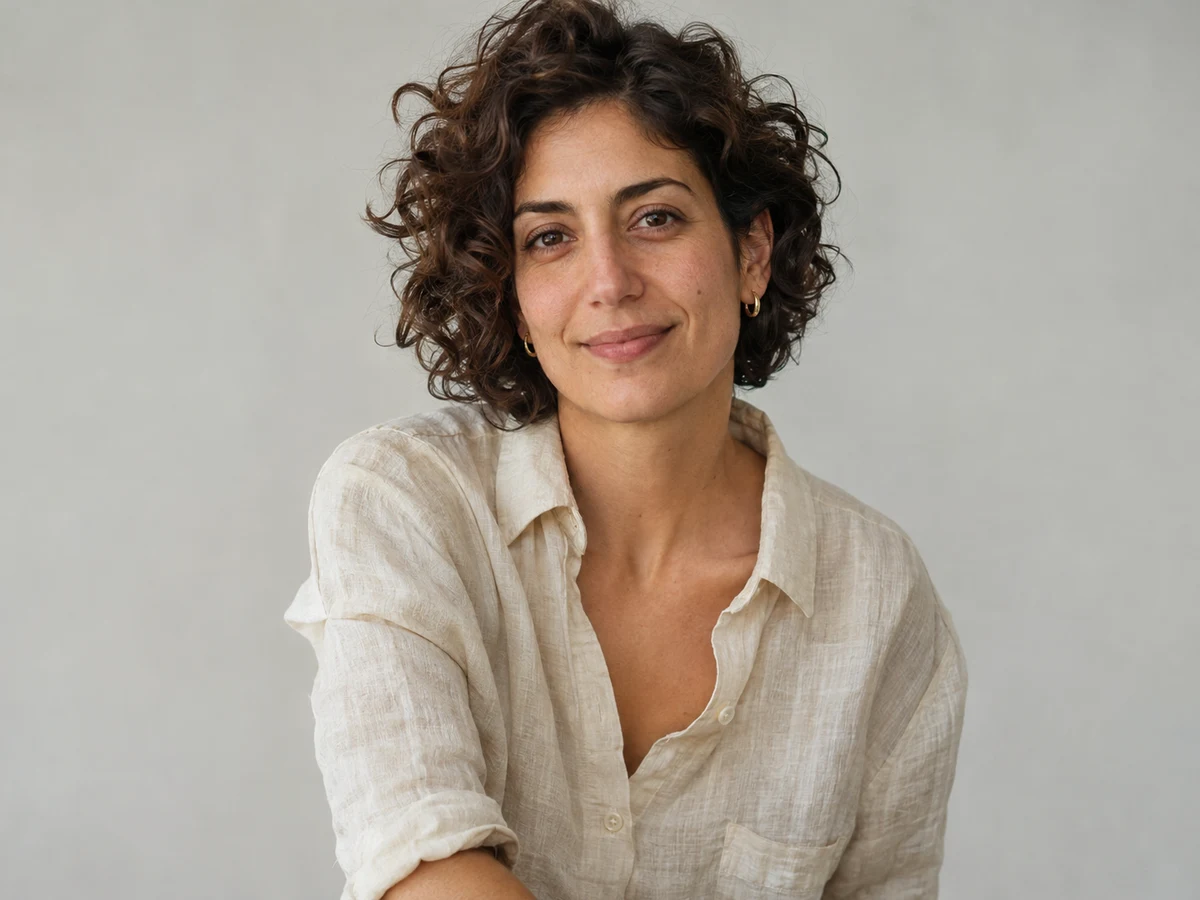
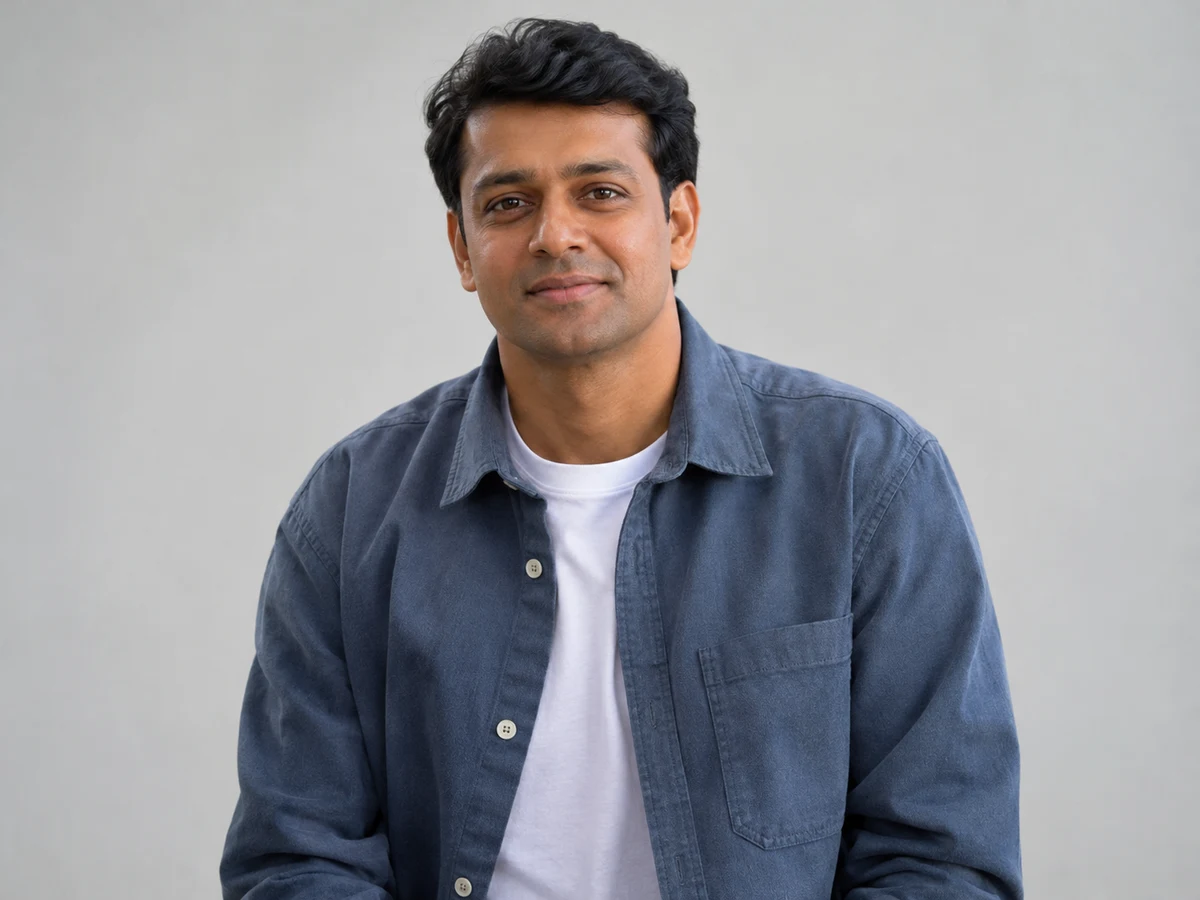
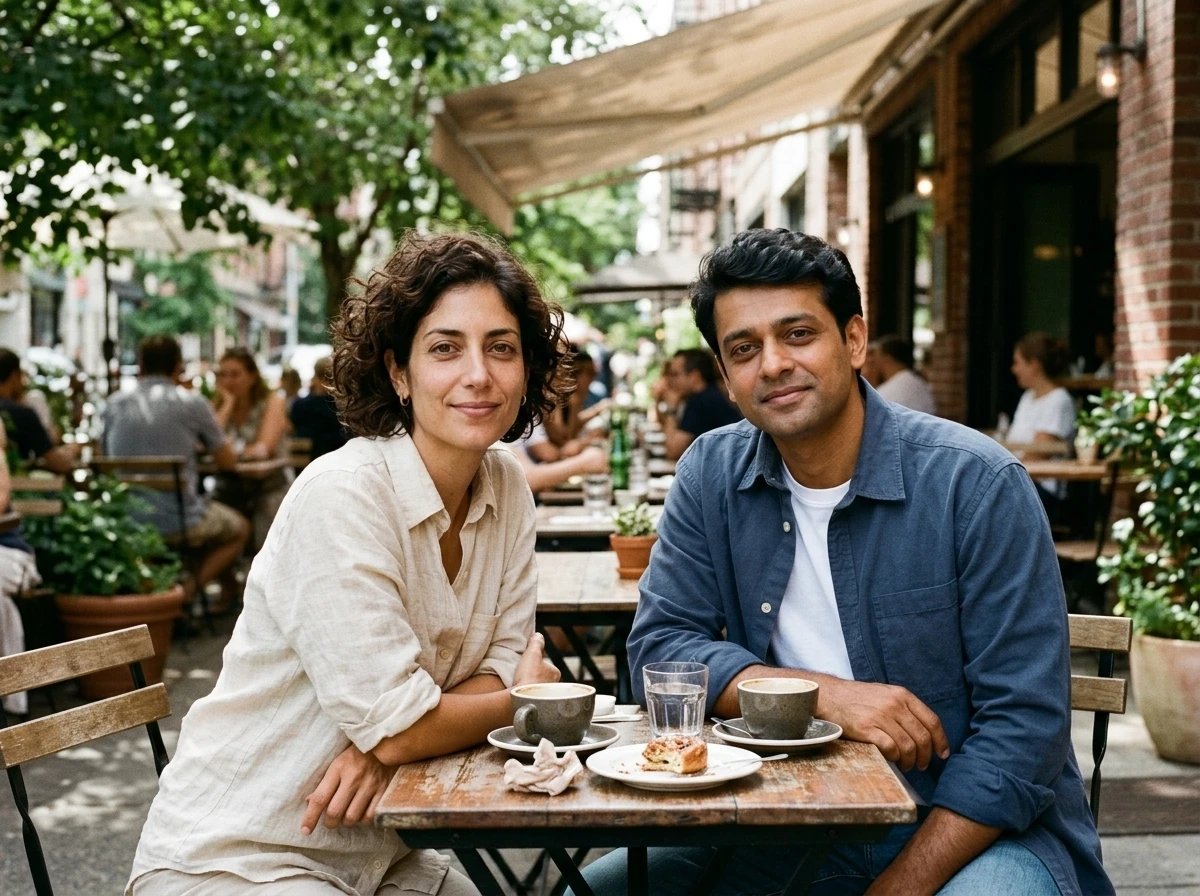
See what two images can create: bring two people together, add a person to a setting, or place a product in an advertising scene. Each example shows two inputs and one output.
Image 1Image 2
Combined image
Put Two People in One Photo
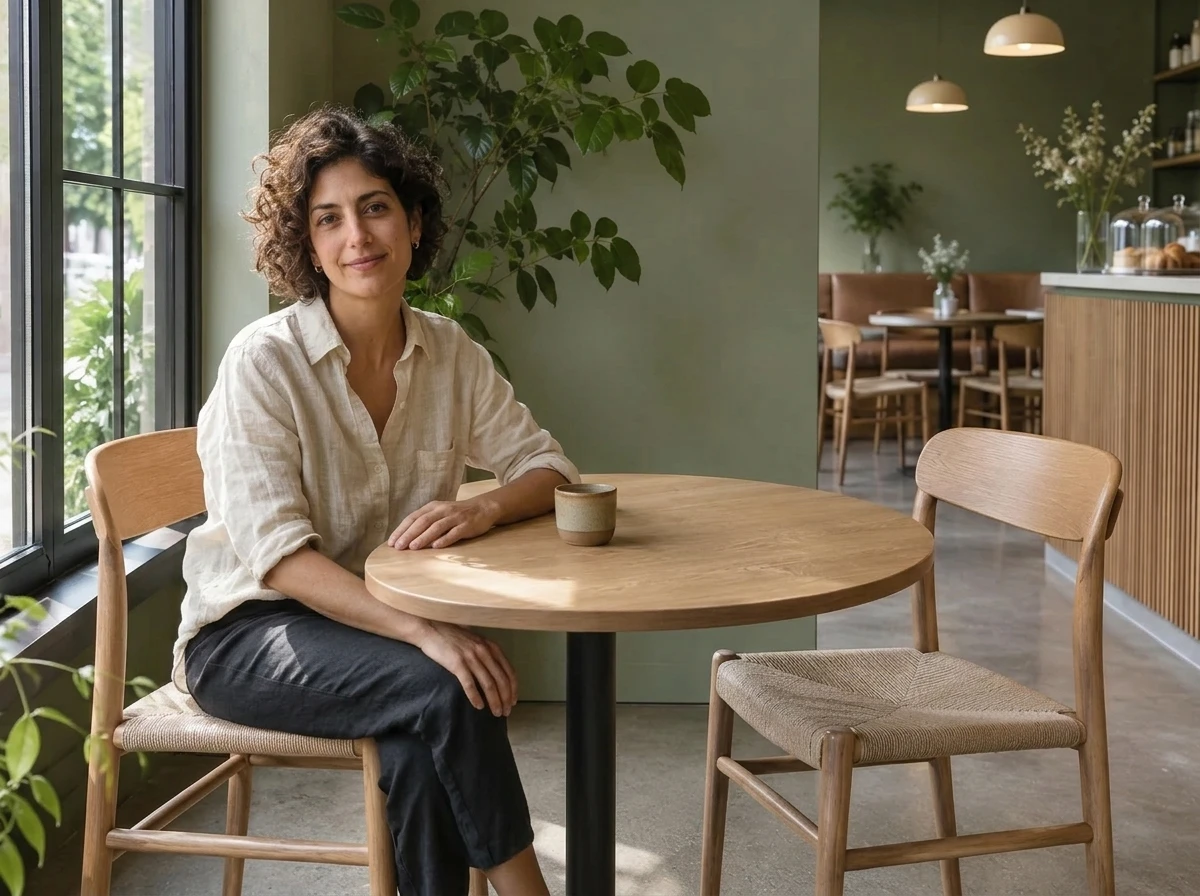
Two separate portraits become a shared cafe scene. This mode asks the AI to keep the people distinct while bringing their perspective and lighting together.
Create a relaxed photo of these two adults sitting at a cafe table. Keep both people distinct, with natural spacing and matching daylight.
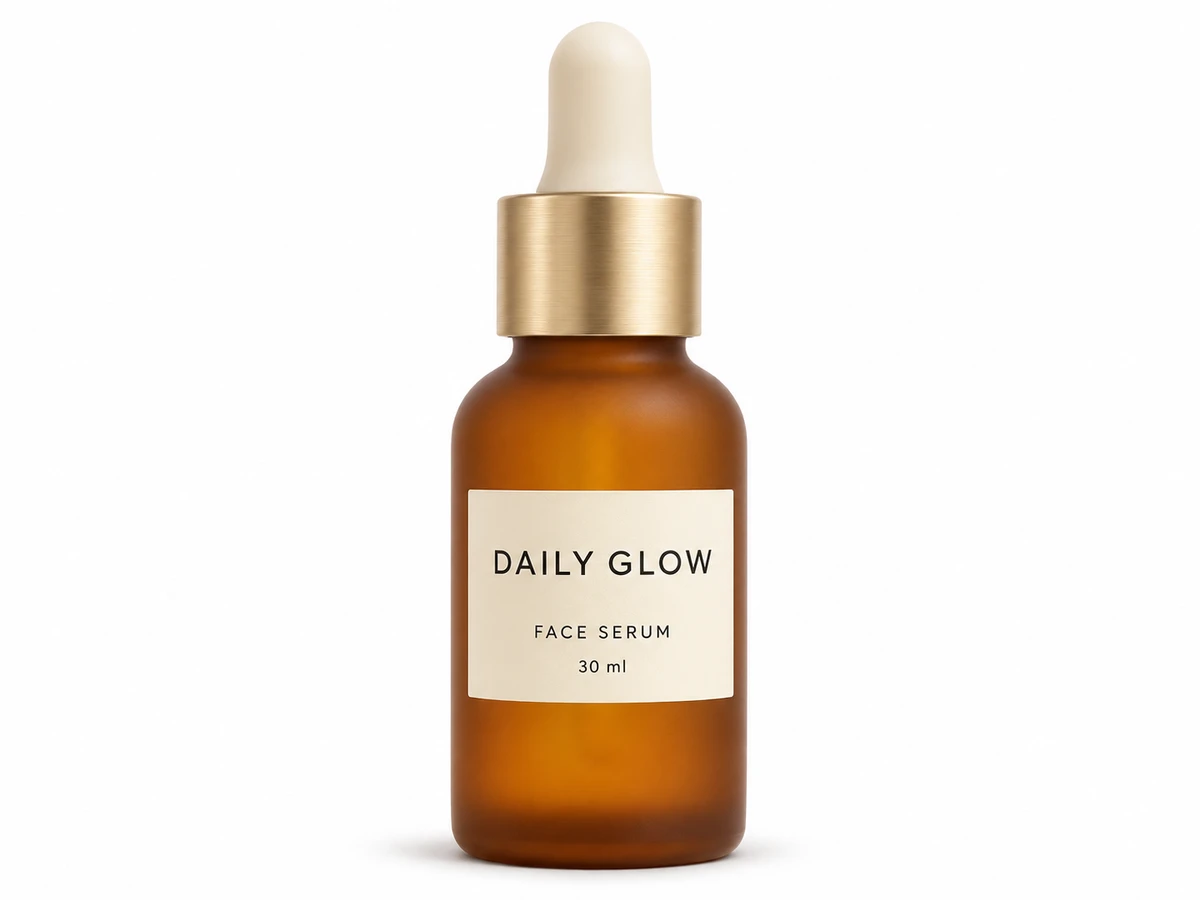
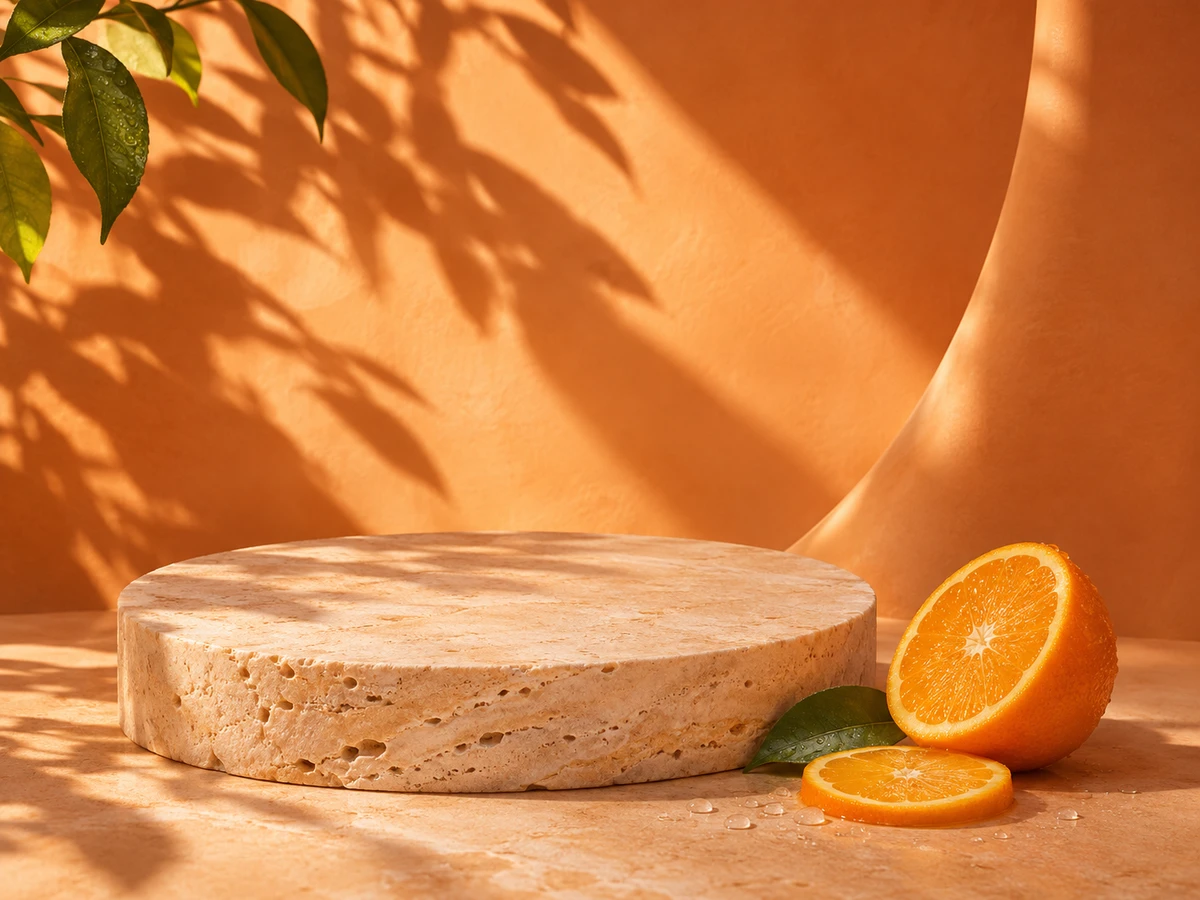
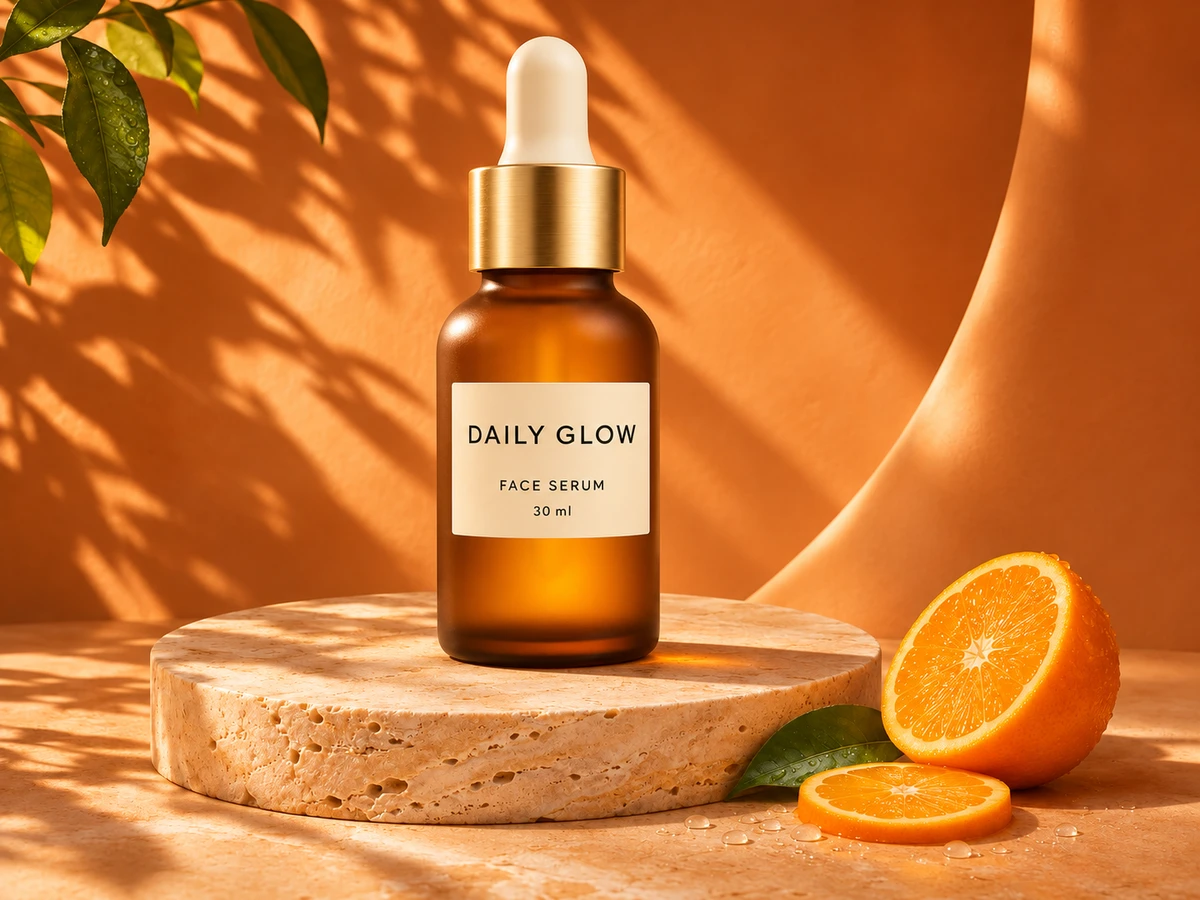
Turn a plain product photo and a styled set into a product-ad concept. Use a clear focal point, coordinated lighting and space around the packaging for a stronger composition.
Place the serum bottle from Image 1 on the stone pedestal in Image 2. Make the bottle the focal point. Preserve its amber glass, gold dropper and label layout. Match the warm side light and add a natural contact shadow.
Combine Multiple Photos with AI
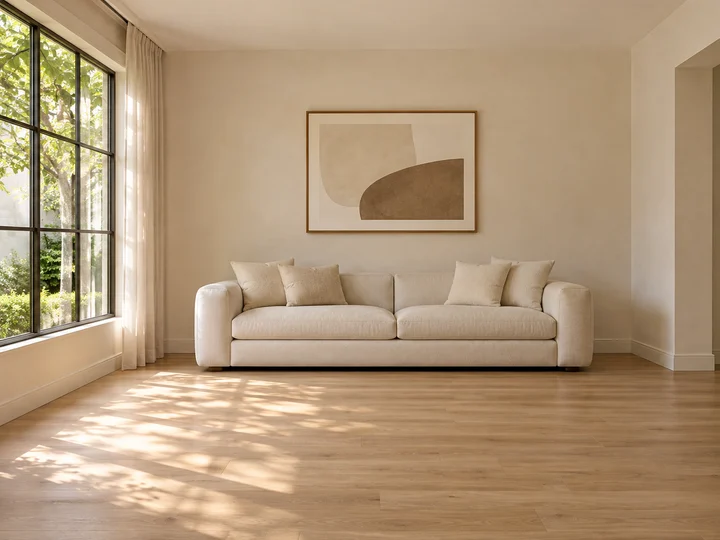
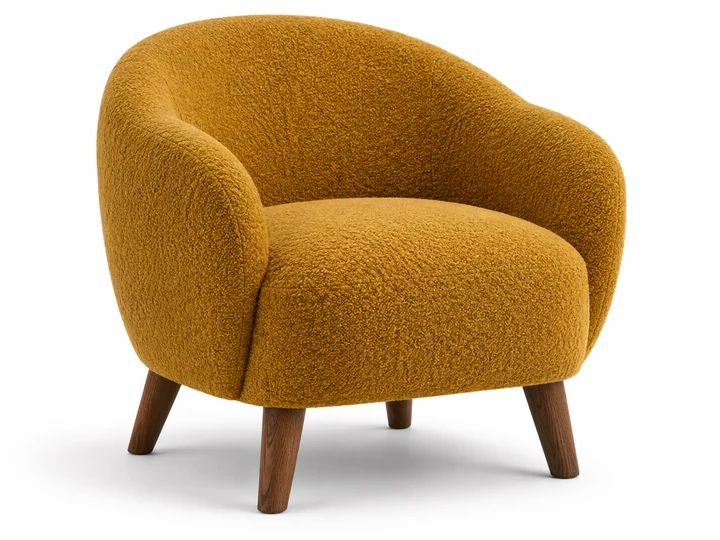
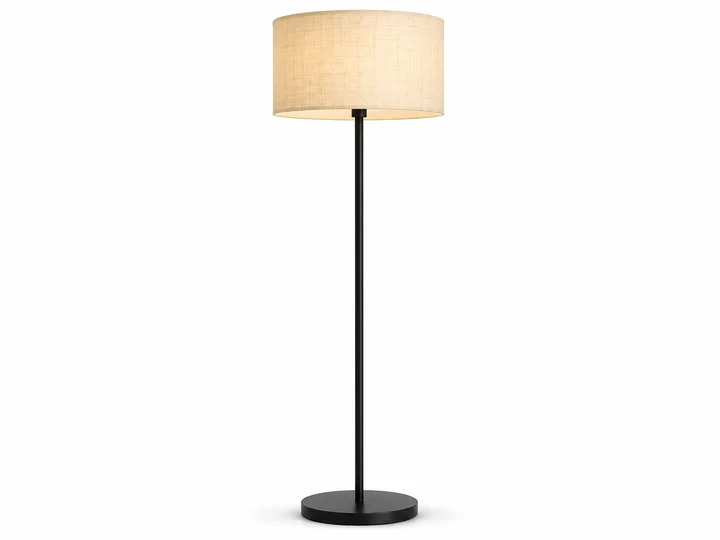
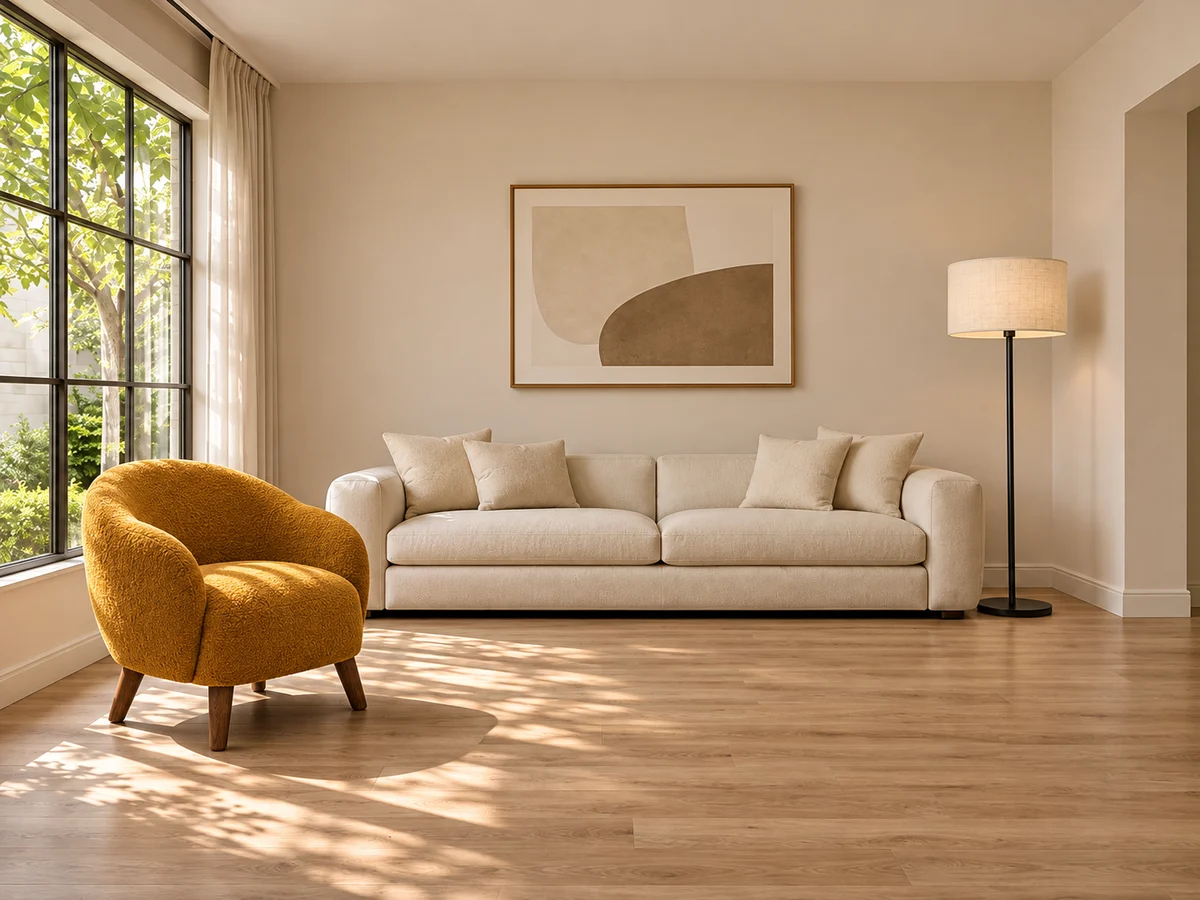
Go beyond two-image combinations. These three-image examples bring together a room and furniture, pets and a garden, or a portrait and outfit pieces. Follow each set of inputs through to its combined image.
Furnish a Room from Separate Images
Use the room as the base, then assign a place to each furniture reference.
Keep the room and sofa from Image 1. Place the accent chair from Image 2 near the window, facing into the room, and the floor lamp from Image 3 beside the sofa. Match furniture scale, floor perspective and the daylight from the window.
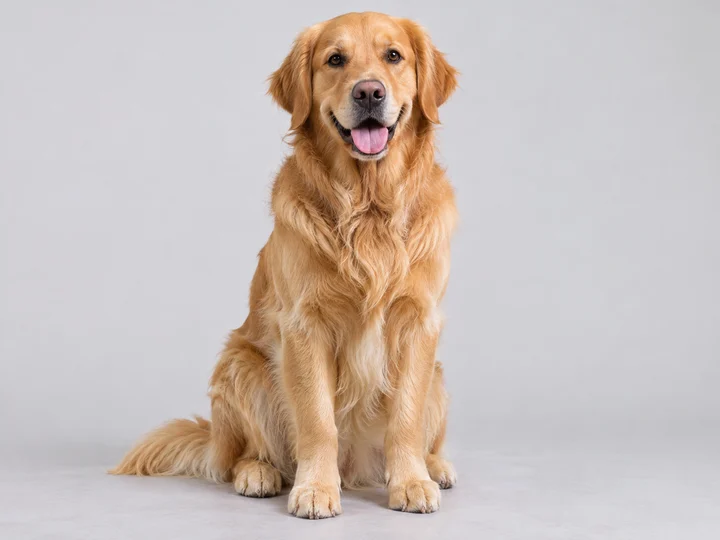
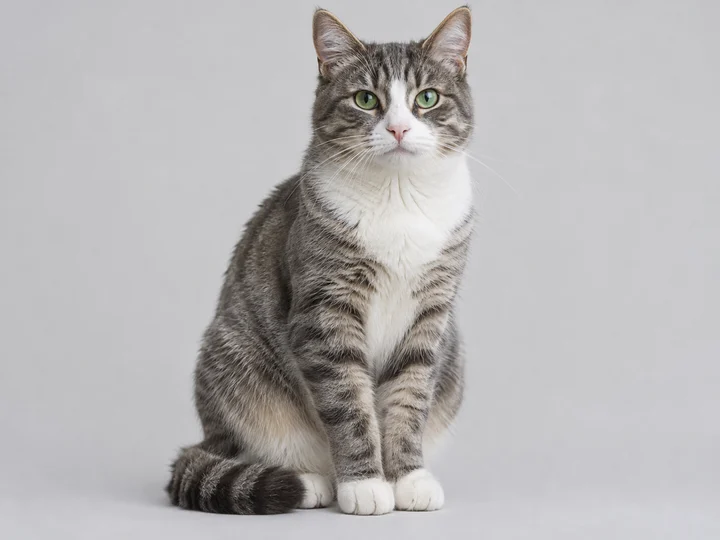
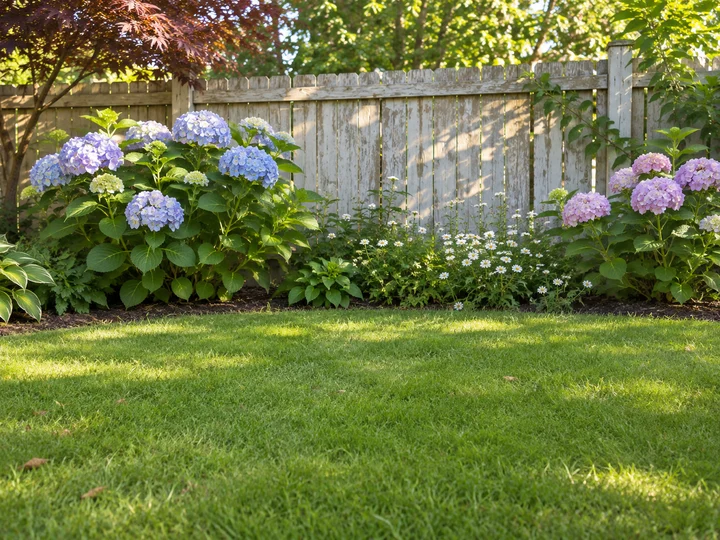
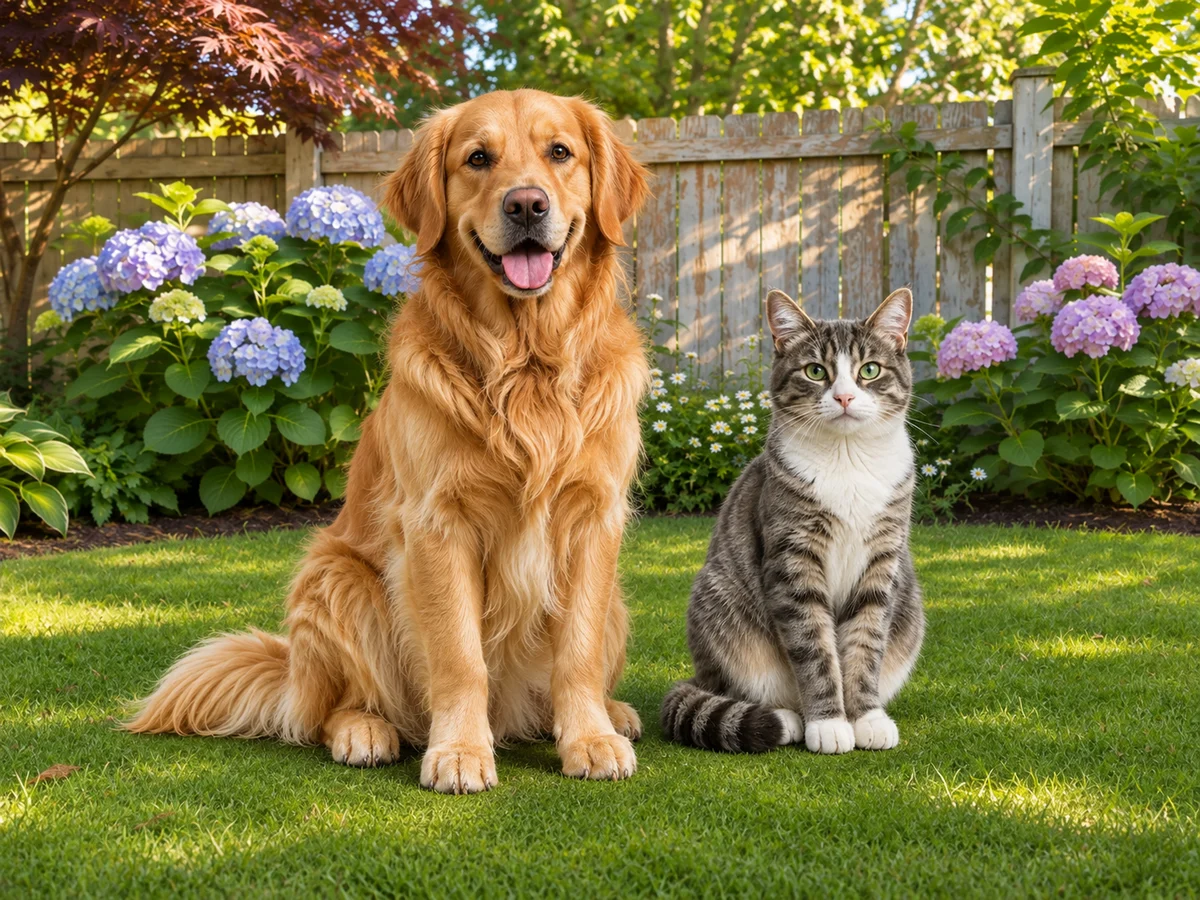
Keep the animals as separate subjects and give them a shared outdoor setting.
Place the golden retriever from Image 1 and the tabby cat from Image 2 sitting side by side on the lawn in Image 3. Keep their markings distinct, use realistic relative sizes, and match the low camera angle and soft outdoor light.
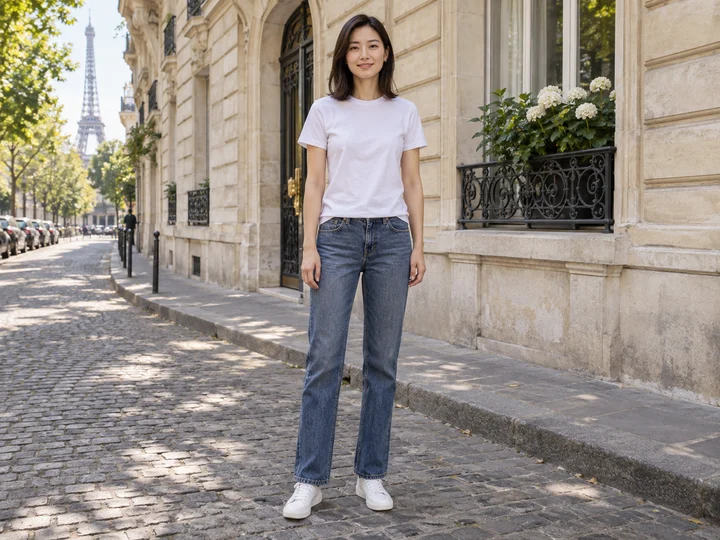
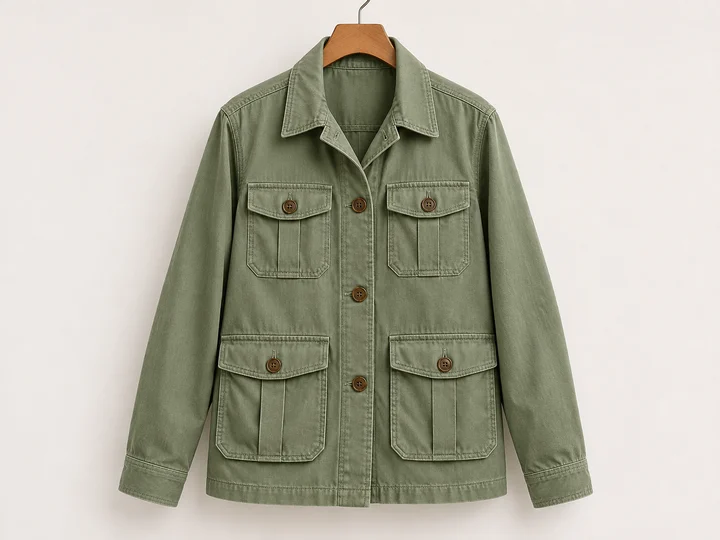
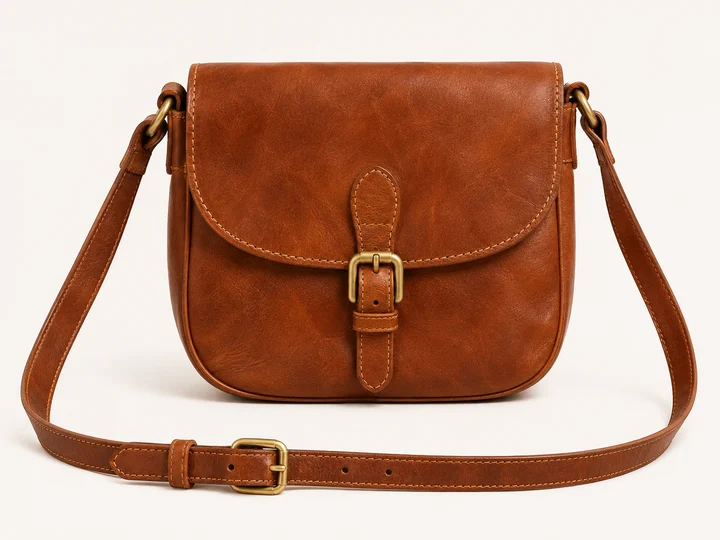
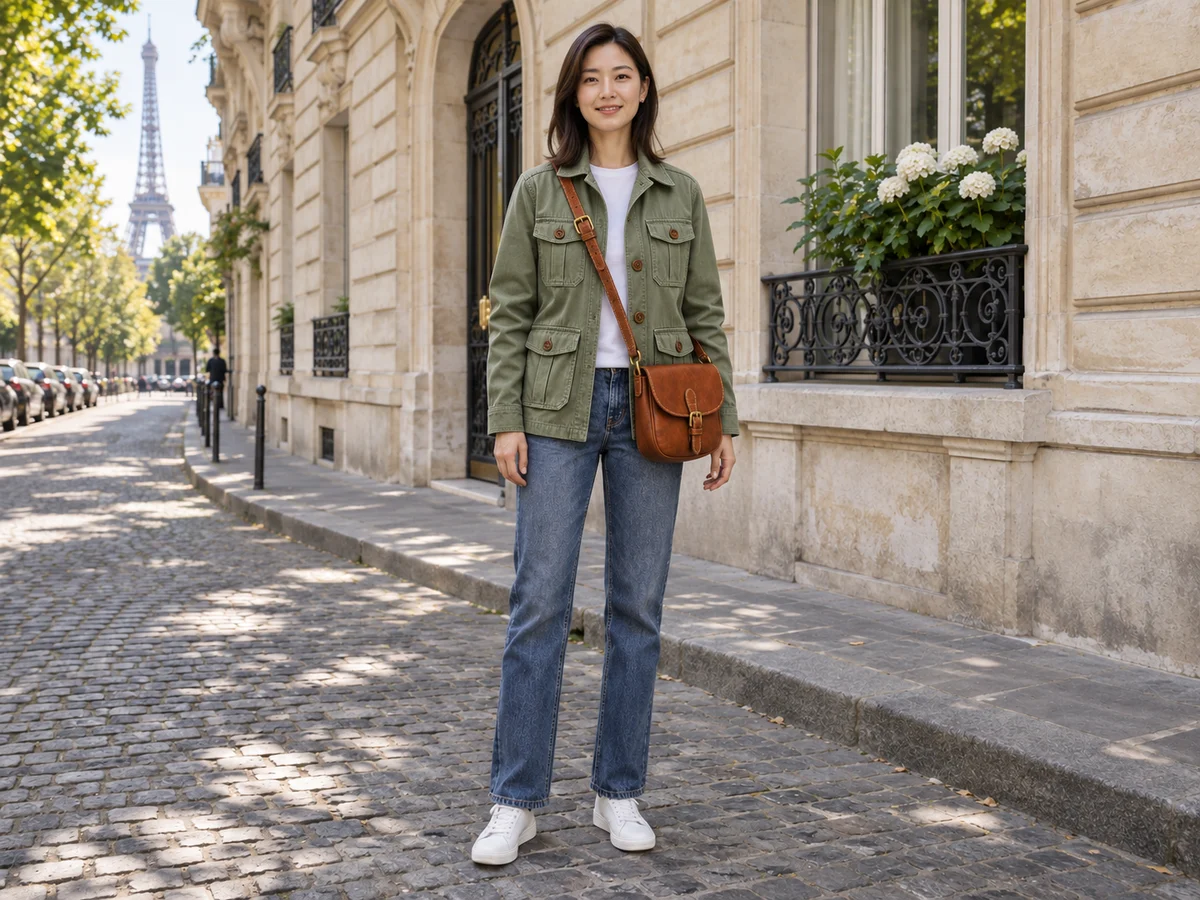
Combine a base portrait, jacket and bag to visualize one complete outfit.
Keep the woman, jeans, shoes and street from Image 1. Dress her in the sage utility jacket from Image 2 and add the cognac crossbody bag from Image 3. Preserve her face and pose, the jacket pockets and the bag buckle. Match fabric folds, scale and daylight.
Select several files at once in Custom combination, then use the arrows to match their order to your image numbers. Add only references that contribute something useful; extra images can introduce competing instructions.
Results from your photos may vary. Applying a prompt keeps your photos and settings and does not start generation.
Why Combine Images with AI Photo Combiner?
Keep your creative choices in one browser workspace, from the reference photos to the image you download.
AI Image Blending with Less Manual Editing
Bring subjects and backgrounds into a shared composition without drawing masks or managing layers. Guided modes instruct the AI to coordinate scale, perspective and lighting.
More References, Less Uploading
Add up to 10 images in Custom combination and select several files at once. Give your idea the references it needs without filling a separate upload box for every photo.
Control the Composition in Your Own Words
Describe placement, background and mood with an editable prompt. Choose a guided mode for a clear starting point or use Custom combination for your own arrangement.
High-Resolution PNG Downloads, Up to 4K
Choose 1K, 2K or 4K output and a portrait, square or landscape format. Download your combined image as a PNG for social posts, product presentations or creative projects.
Three steps
How to Combine multiple Images Into One with the AI Image Combiner
Choose the references, describe the relationship, then generate. No design software or layer editing needed.
Upload two or more images
Use JPG, PNG or WebP files, up to 8 MB each. In Custom merge, select several images at once or drop them together. Reorder references to match your instructions.
Choose how to merge them
Pick Together, Add a person, Product scene or Custom merge. Describe who or what goes where, choose an aspect ratio, and select 1K, 2K or 4K. Check the credit total before generating.
Review and download your image
Sign in and generate your combined image. Follow its progress in the workspace, enlarge the finished result to check details, and download it as a PNG.
Start with a specific composition, then replace the setting, position or mood to fit your own references. Each prompt below has a different job.
A candid portrait of two people
People together mode. Each reference supplies a different adult.
Photograph the two adults walking side by side in a leafy park. Keep each person recognizable and separate. Use relaxed poses, eye-level framing and soft overcast light.
A person in an existing scene
Add a person mode. Image 1 is the scene; Image 2 is the person.
Add the adult from Image 2 to the right side of Image 1. Keep the existing people and room arrangement. Match the camera angle, body scale and direction of light.
A product on a new surface
Product scene mode. Image 1 is the product; Image 2 is the setting.
Place the product from Image 1 on the main surface in Image 2. Preserve its overall shape, material and colors. Match the perspective and add a natural contact shadow without extra props.
One composition from several objects
Custom combination mode. Use 2–10 object references and describe the arrangement.
Arrange one object from each reference on a pale tabletop as a balanced still life. Keep the objects separate, use a consistent camera angle and light the scene from the left. Do not repeat any object.
Applying a prompt changes the mode and instructions only. Your selected images and output settings stay in place; nothing is generated or charged.
Get Better Results from Your Reference Photos
Better source images and clearer instructions reduce ambiguity. Higher output resolution alone cannot recover details missing from a reference.
Start with a visible subject
Use a well-lit image with an unobstructed face or a clearly outlined product. Tiny subjects and strong filters give the model less reliable detail.
Check viewpoint and light
Similar camera heights and light directions are easier to reconcile. If the references differ, describe the final camera angle and light source.
Review the finished image
Inspect faces, hands, product edges, labels and shadows before sharing. AI may change these details even when you ask it to preserve them.
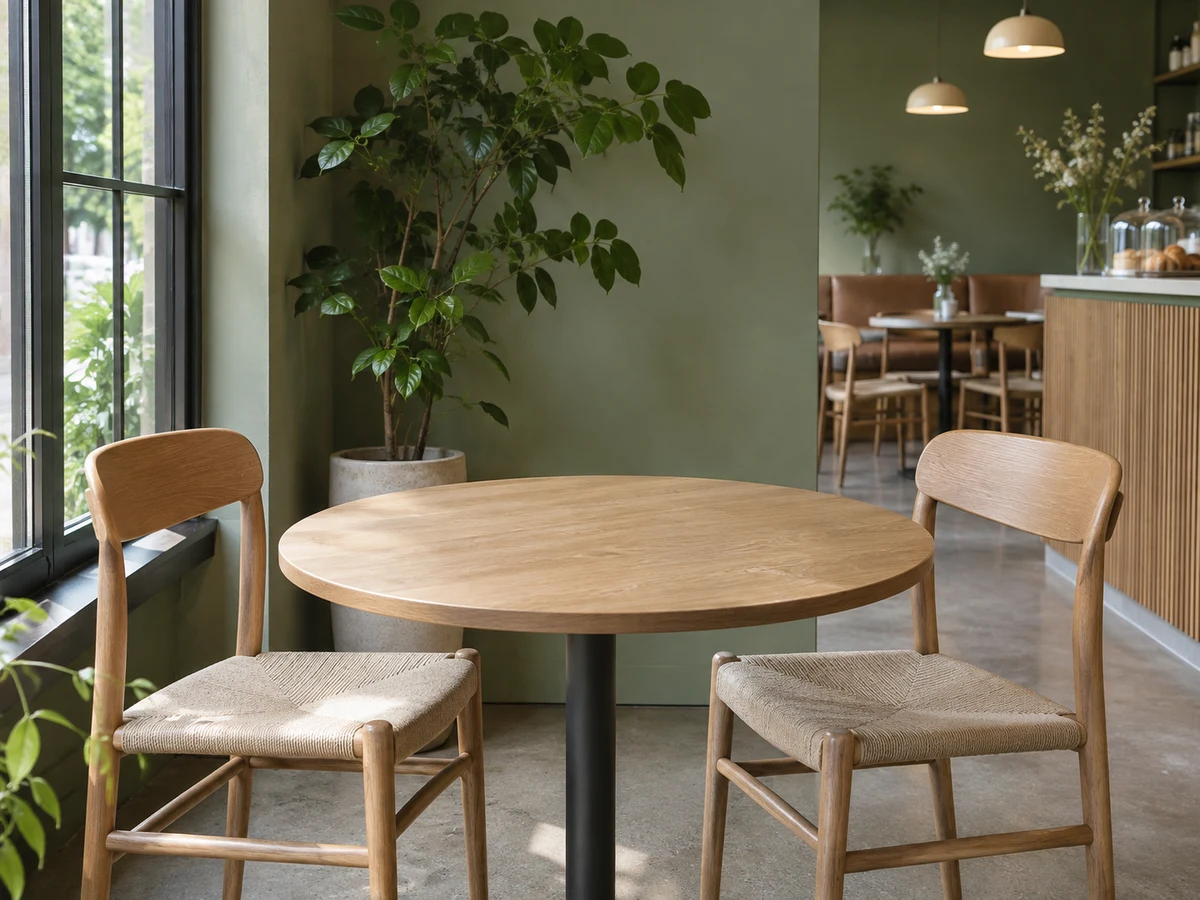
Keep the room from Image 1. Place the chair from Image 2 beside the window, facing the table. Match its scale to the existing furniture and cast its shadow to the right.