How to Combine Photos While Keeping Faces Recognizable
Keep people recognizable when combining photos: choose clear face references, map each person in your prompt, and check the result before downloading.
 AI Photo Combiner

Short answer: use a clear portrait and tell the AI which reference supplies the person’s face. To place someone in a new setting, upload the scene first, the portrait second, and choose Add a person. Keep changes to age, expression and styling simple, then compare the generated face with the portrait before downloading. You can ask the tool to keep people recognizable, but you cannot guarantee that their faces stay exactly the same.
1 scene + 1 clear portrait · 1K · 10 credits · check the face before sharing
What you need
- One clear reference per person: JPG, PNG or WebP, up to 8 MB each. For this walkthrough, use one portrait and one scene photo.
- Permission to use the images: everyone shown must be an adult and agree to their inclusion. See the image-use terms for the current rules.
- An account and credits: two references at 1K cost 10 credits. New accounts receive 10 signup credits, enough for one such attempt.
- A way to compare: keep the original portrait open beside the output so you can compare facial details.
This walkthrough follows one person from a portrait into a cafe scene. For a picture of two people together, see the two-person photo tutorial; the face checks below apply to each person separately.
What “keeping faces recognizable” means
Your goal is for each person to look like themselves in the new picture. Check their facial proportions and distinctive details, rather than accepting a result because it has the right hair color or clothes.
AI Photo Combiner generates a new image. It can redraw eyes, teeth, skin texture or the shape of a face while bringing the subjects into one scene. A plausible portrait can still be a poor likeness.
If you need the original face pixels preserved—for a precise photo restoration, for example—use a layer-based editor with masks. A prompt asking for “exactly the same face” does not turn generative editing into pixel-preserving compositing.
Step 1: Choose references where the faces are easy to read
Open each source photo at full size before uploading. Can you see the eyes, nose, mouth and outline of the face clearly? If those details are blurry or hidden, choose another photo when possible.
| Check | Useful starting reference | Choose another photo when… |
|---|---|---|
| Face visibility | Eyes, nose, mouth and jaw are visible. | Sunglasses, hair, hands or a mask hide important features. |
| Sharpness | Facial details are readable at normal viewing size. | The face is tiny, blurred or heavily compressed. |
| Camera angle | The angle is close to the portrait you want to make. | You want a front-facing result but only have a strong side profile. |
| Lighting | The face has readable detail on both sides. | Deep shadow or blown highlights obscure features. |
| Editing | The photo reflects the appearance you want retained. | A strong beauty filter has reshaped the face or removed identifying details. |
For a seated cafe portrait, choose a reference with a camera angle close to the result you want. Asking the model to turn a profile toward the camera means it must generate facial detail the reference does not show.
These are practical selection checks, not a measured guarantee of better results. They help you identify what information the model actually receives.
Step 2: Map each face to the right reference
In the AI Image Combiner workspace, choose Add a person. Upload the cafe as image 1 and the portrait as image 2. The scene tells the model where the person goes; the portrait supplies their appearance.

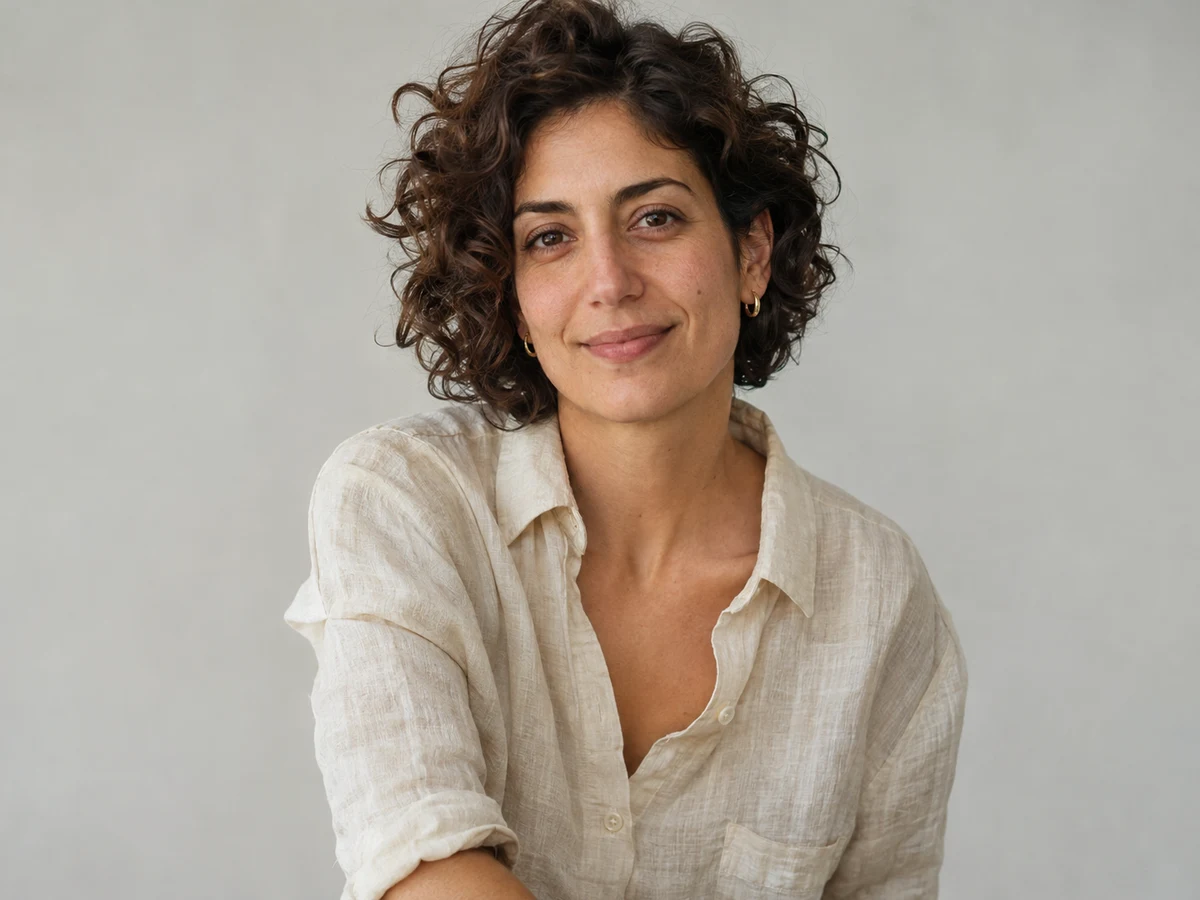
Image 2 supplies the person and the face to compare.
Name the portrait explicitly instead of writing only “keep the face.” Here is a suggested prompt:
Use image 1 as the cafe setting. Seat the adult from image 2 in the left chair beside the window. Keep her facial proportions, eye shape, nose, mouth, hairline and hairstyle as close to image 2 as possible. Retain her apparent age and use a relaxed expression with her face visible. Keep her cream shirt. Match the scene's perspective, body scale and soft window light. Include only this one person.
This suggested prompt makes the identity reference and placement explicit. It is not the historical prompt that produced the example below, and it does not guarantee unchanged features.
Remove instructions that conflict with likeness
Check the rest of your prompt for changes you may not actually want:
- “Make us younger” asks for an appearance change. Leave it out if present-day likeness is your priority.
- “Blend our faces” suggests combining features. Ask to retain the identity from the portrait reference instead.
- “Make everyone look like a fashion model” leaves room for facial restyling. Describe clothing or background changes specifically.
- A dramatic angle or a face-covering pose makes comparison harder. Start with the face visible.
If you later add a third reference of the same person, name its role: “Image 3 is another portrait of the person in image 2; include this person only once.” Extra references cost 2 credits each and may contain conflicting information. Start with a clear pair before adding more.
Step 3: Generate, then compare faces one at a time
Choose 1K for your first attempt and review the 10-credit total for two references. Sign in, confirm image permissions, and click Combine my images.
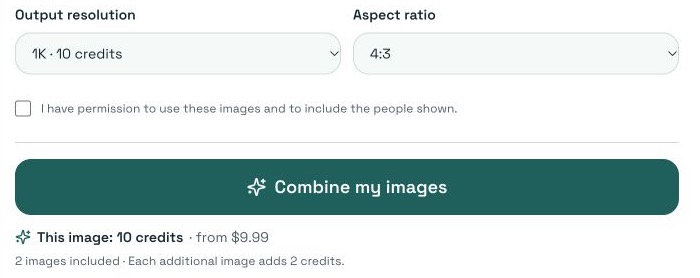
Two references at 1K cost 10 credits. These settings show preparation for generation, not a completed likeness test.
When the image is ready, compare the generated person with the portrait in image 2. Image 1 is the scene, so it is not the identity reference. Don't judge the face from the small overall preview alone.
| Look at | What to compare |
|---|---|
| Face shape | Width, jawline, chin and the proportions between forehead and lower face. |
| Eyes and eyebrows | Shape, spacing and brow position; check that features have not migrated between people. |
| Nose and mouth | Nose shape, lip shape and smile. A new expression can change how they look. |
| Hairline and distinctive details | Hairline, facial hair, visible marks and other details that matter to recognition. |
| Apparent age | Whether the output has noticeably aged or smoothed the person. |
Different lighting and expressions affect appearance, so compare the underlying features as well as the overall impression. A matching shirt or hairstyle alone is not evidence that the face has been preserved.
Click Download PNG after checking. Keep the reference photos and prompt if you plan another attempt, so you can identify what changed.
A recorded example: the same portrait in a cafe scene
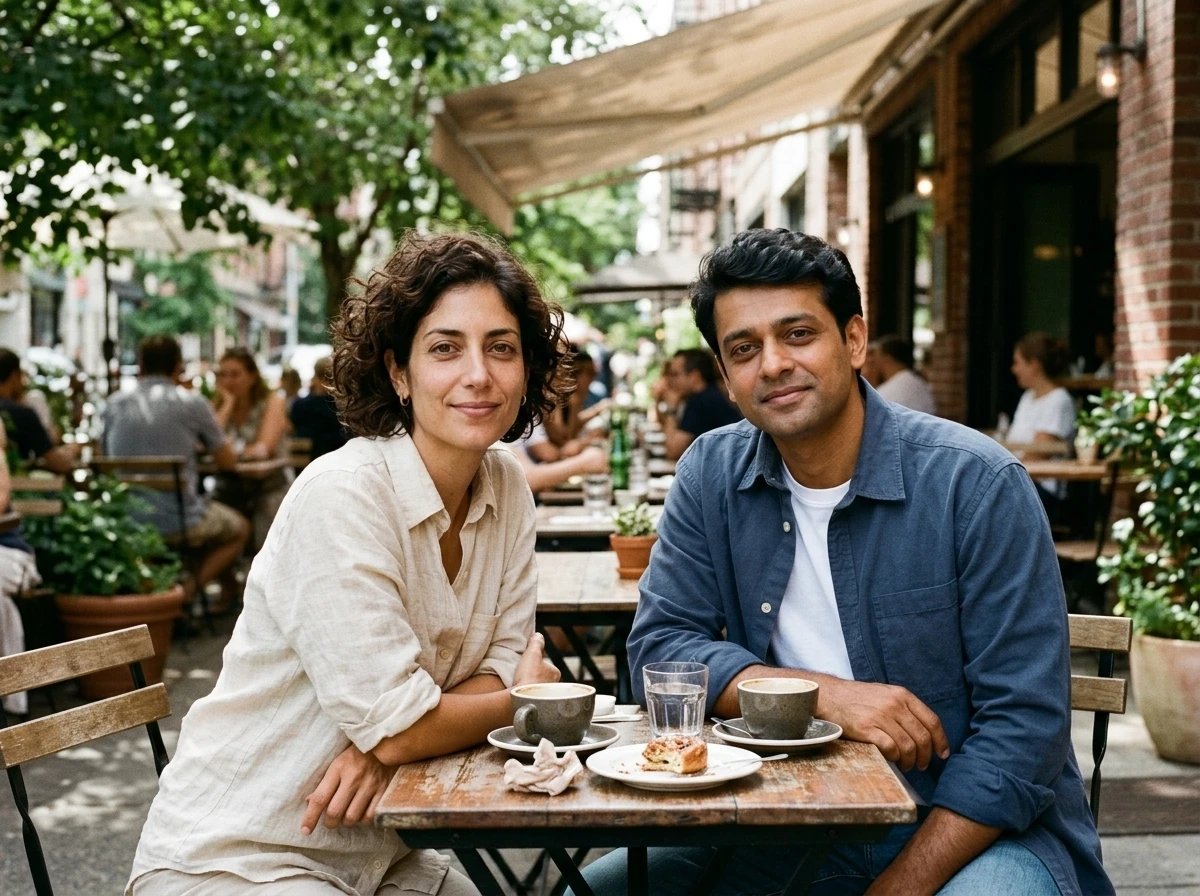
The portrait and cafe above were used for this recorded result. The person has moved from a portrait into a seated composition beside a window:
Her curly hair and cream shirt are visible in both images, but those broad cues are not enough to judge facial likeness. Compare the face outline, eye shape, nose and mouth with image 2. The pose and lighting have changed, so don't expect identical highlights or an identical expression.
Example details: Nano Banana 2.1, two references, Add a person, 1K, 4:3, generated November 3, 2026. The full submitted prompt was:
Use image 1 as the base photograph. Add the person from image 2, and people from any further reference images, to that scene. Keep the existing people and composition as much as possible. Match perspective, scale, lighting and shadows; keep each person distinct and recognizable.
User direction: Seat the woman from Image 2 in the left chair of the cafe in Image 1. Keep the table, window and room layout, and match the soft daylight.
The request asked for a recognizable person and a particular seat; it did not lock the original face pixels. This is one recorded direct-provider output using an AI-created fictional adult reference, with WebP encoding for display. It is not a controlled comparison of face-preservation prompts or a real-person identity validation. The settings screenshot demonstrates the controls, not the run that produced this image.
What if you are combining two people's portraits?
Choose Put Two People Together and give each person their own reference number and position. For example: “Put the person from image 1 on the left and the person from image 2 on the right. Keep each person's own facial features; do not blend or swap their faces.”
Then perform the same check twice, comparing each face with its own reference. Follow the two-person tutorial for that workflow. The cafe example here tests a single person added to a scene.
If the face looks right but the person seems pasted into the scene, use the lighting, shadows and edges guide to check the blend.
If a face looks different, change one thing before retrying
Use the mismatch to decide what to change. These are troubleshooting suggestions, not results from a measured retry study.
| Problem | Next attempt |
|---|---|
| The face looks generic | Replace a distant or filtered reference with a clearer one. Remove broad beautification instructions. |
| The two people share facial features | State that each identity comes from its own image. Remove face-blending language and keep positions explicit. |
| Someone looks older or younger | Use a reference showing the intended age and remove age-changing directions. |
| A turned face is hard to recognize | Ask for a camera angle closer to the reference, with the face visible. |
| The face is recognizable but hands or shadows are wrong | Keep the identity instructions and target the pose or scene problem. Recheck the face on the new output. |
Each new generation costs credits, including another attempt to improve a completed result. Higher resolution is not an identity lock: two references cost 15 credits at 2K or 23 at 4K, and a larger image can still have changed features. See pricing before choosing another setting.
If exact facial preservation is a requirement, switch to a workflow that retains the original face regions. Keep the AI version for uses where you can review and accept the changes.
Use a clear portrait, identify it in your prompt, and compare the face before downloading.
Frequently asked questions
- Can I combine photos without changing the faces at all?
- AI Photo Combiner cannot guarantee unchanged faces. It generates a new image from your references, so facial details may change. If exact preservation is essential, use an editor with layers and masks to keep the original face pixels.
- What should I write to keep both faces recognizable?
- Identify the person from each image, give each a position, and ask for separate identities with their own facial features. Avoid instructions to blend faces or change their ages. Compare the output with both references; wording alone cannot guarantee likeness.
- Will 4K fix a face that looks different?
- Not reliably. A larger image can still contain changed facial features. Check likeness at 1K first, and revise the reference or prompt before spending more on a higher-resolution generation.
- Should I upload several photos of the same person?
- Start with one clear reference per person. More references can introduce conflicting ages, hairstyles, angles or filters. If you add another, explicitly state which person it belongs to. Each reference beyond the first two adds 2 credits.
- Is this face blending or a face swap?
- No. This guide keeps different people as separate subjects in one scene. Face blending combines features into a new identity, while face swapping replaces a face. Neither is the task described here.