How to Combine Two People from Separate Photos into One Picture
Combine two people from separate photos in 3 steps. Choose a mode, copy a prompt and download a PNG. Includes a cafe example, a partner-photo prompt and face checks.
 AI Photo Combiner
Short answer: upload one clear photo of each person to AI Photo Combiner, choose Put Two People Together, and describe your shared scene. Select 1K, click Combine my images, then check both faces and download a PNG. Two photos cost 10 credits at 1K, covered by the signup credits for a new account.
2 photos · 1K · 10 credits · browser-based · sign-in required
What you need
- Two photos: one clear photo of each person. JPG, PNG or WebP, up to 8 MB each.
- Permission: use photos you have the rights to process, with permission from everyone shown. Everyone must be 18 or older; photos of public figures are not allowed under the image-use terms.
- An account: sign in to generate. New accounts receive 10 signup credits, enough for one two-photo 1K attempt.
- A simple scene in mind: sitting at a cafe, standing side by side, or sharing a park bench. Tell the tool where each person should go.
Step 1: Upload your two photos
Open the AI Image Combiner workspace and add your images. Use a photo where each face is easy to see: even light, little blur, and no heavy filters or sunglasses covering the eyes.
For a new picture of two people together, upload the first person as image 1 and the second as image 2. Use the arrow controls to change their order if needed. Image numbers in your prompt follow this order.
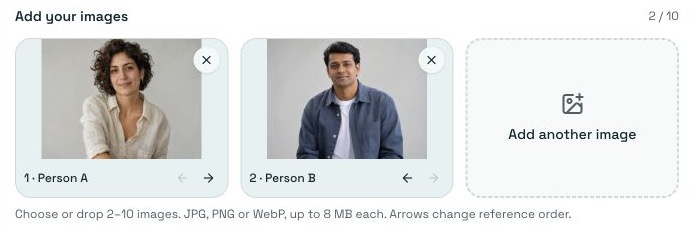
Two references uploaded: image 1 is Person A, image 2 is Person B. Use the arrows to change their order.
Choose similar camera angles where you can. Two eye-level portraits give you a simpler starting point than a close selfie paired with a distant full-body shot. For a full-body picture, references that show clothing and proportions give the model more to work with; missing details will be generated.
Step 2: Pick a mode and describe your picture
Choose Put Two People Together. This mode uses one reference for each person and creates a new shared scene. It keeps the two people as separate subjects rather than merging their faces into one.
The mode shows a default prompt you can edit. For a new cafe portrait, copy this and change the setting or positions:
Combine the person in image 1 and the person in image 2 into one natural photo at an outdoor cafe table. Put the person from image 1 on the left and the person from image 2 on the right. Keep their faces distinct and recognizable, with their own hairstyles and clothing. Match scale, perspective and soft daylight. Include only these two people, with no background people. Do not blend their faces.
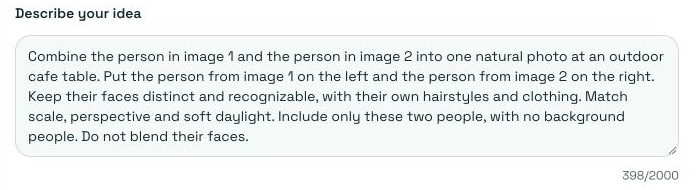
Paste the prompt into Describe your idea, then change the positions, setting or lighting to match your picture.
The useful details are who comes from each image, where they go, and what light they share. “Merge these photos” leaves all three decisions to the model.
Step 3: Choose your settings, generate and download
Start with 1K. Choose 4:3 for two people sitting side by side, or 1:1 for a square portrait. Review the total on the button before you generate:
- Two photos: 10 credits at 1K, 15 at 2K, or 23 at 4K.
Your 10 signup credits cover one attempt with two photos at 1K. Higher resolutions and further attempts need additional credits. See pricing for more.
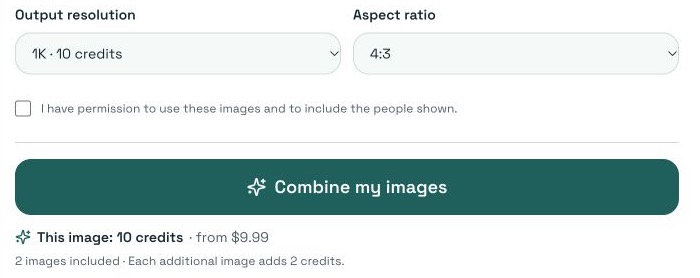
Before generating: 1K, 4:3, and 10 credits for two references. The permission checkbox is still unchecked in this screenshot.
Sign in, tick the permission checkbox, then click Combine my images. When your result is ready, check:
- Both faces: each person appears once, with their own features.
- Bodies and hands: proportions, fingers and contact with chairs or tables look plausible.
- The shared scene: lighting, shadows and camera angle fit both people.
Click Download PNG to save the picture. Higher resolution gives you a larger output; check the composition at 1K before spending more on another version.
What the combined picture can look like
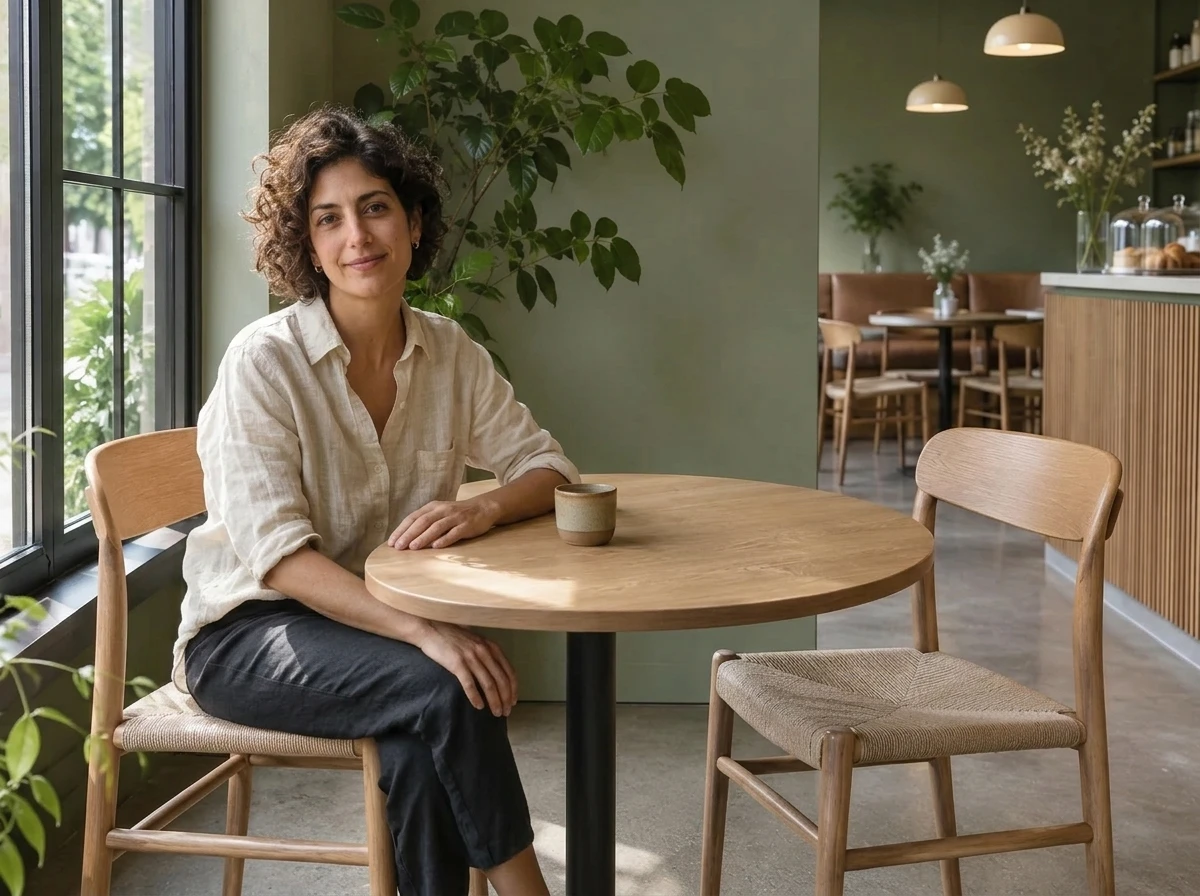
Here are the two references used for the cafe picture at the top of this guide:
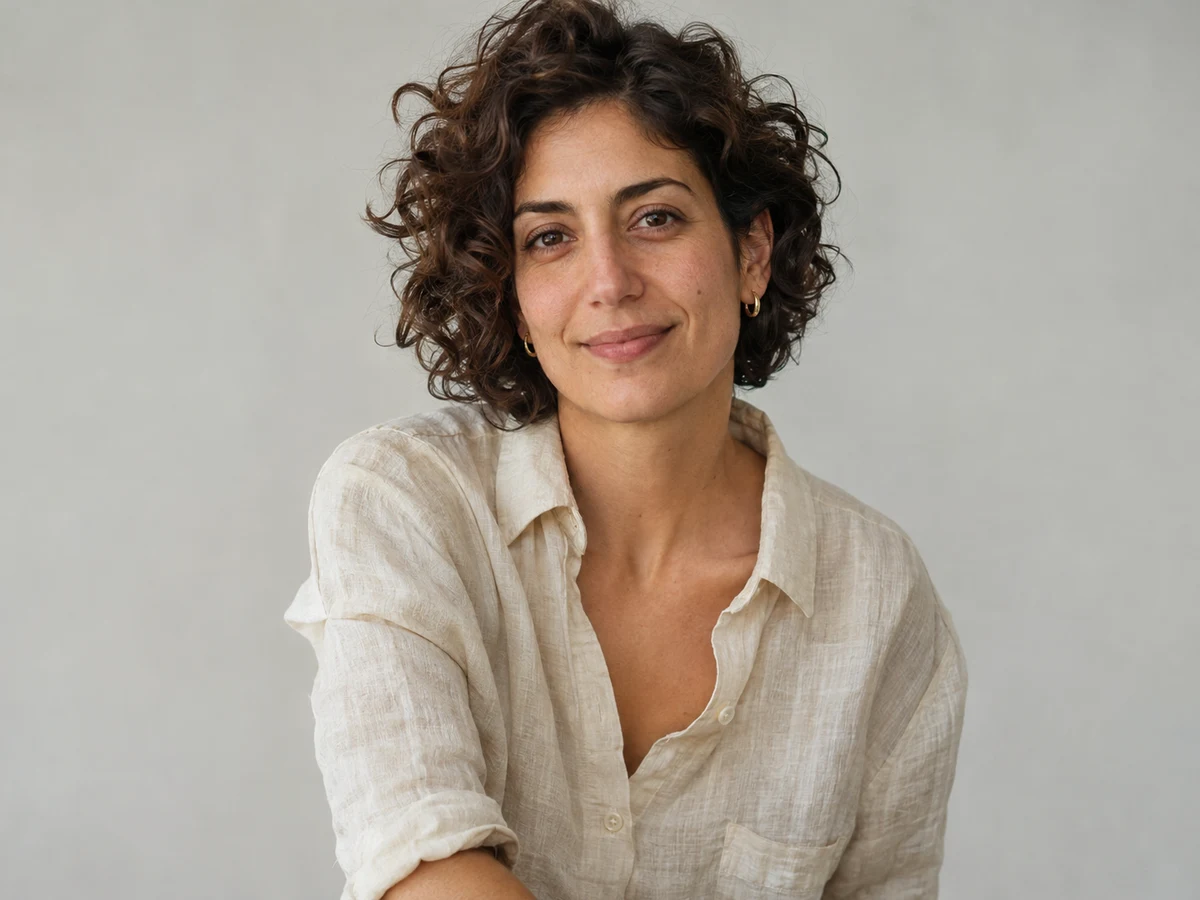
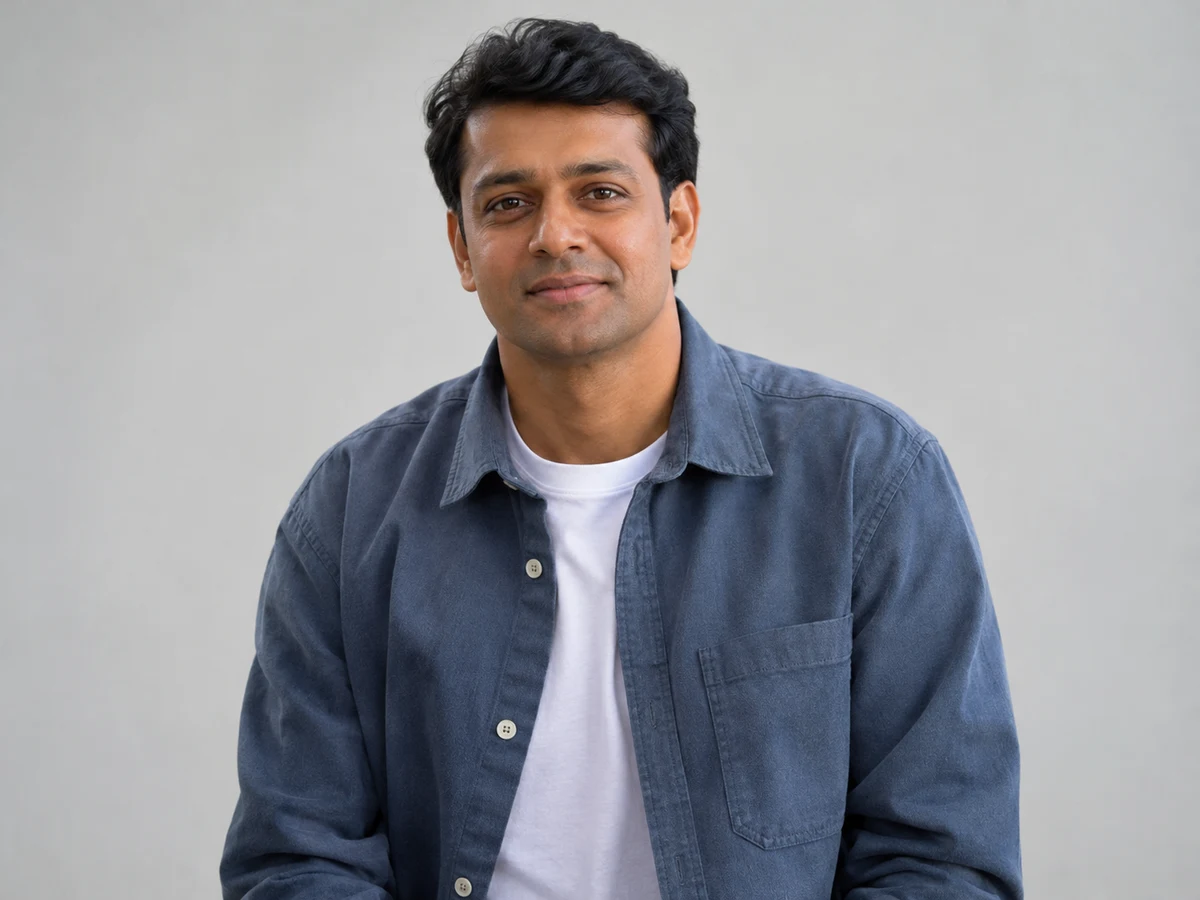
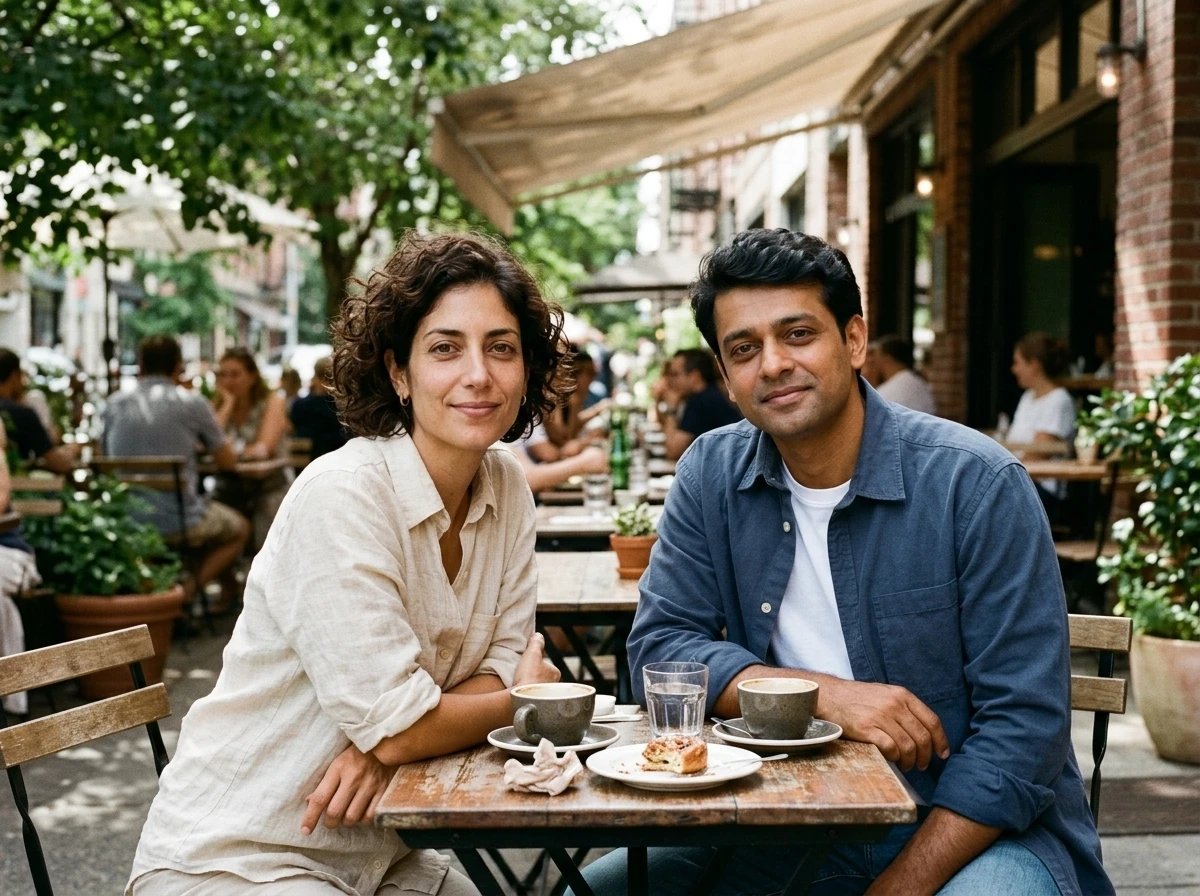
The request used Nano Banana 2.1 · 2 references · 1K · 4:3. This was the full submitted prompt:
Combine the people in the reference images into one natural group photograph. Keep each person distinct and recognizable. Use consistent perspective, scale, lighting and shadows. Do not blend their faces together. Include the people from all reference images.
User direction: Create a relaxed photo of these two adults sitting at a cafe table. Keep both people distinct, with natural spacing and matching daylight.
Both people appear at one table, with separate faces, cream and blue clothing, and matching daylight. The model also created the outdoor cafe, tableware and background people. If you want an empty background or a specific location, say so in your prompt.
About this example: the references show AI-created fictional adults. The cafe result is a recorded Nano Banana 2.1 output generated through the provider directly on November 3, 2026, with WebP encoding for display. It demonstrates model output, rather than a test of the website’s signup and payment flow. Its recorded prompt differs from the suggested prompt in Step 2, which adds explicit positions and excludes background people. The workspace screenshots show preparation for that suggested prompt, not the request that produced this result.
Want a closer check of likeness? See how to combine photos while keeping faces recognizable for reference selection, identity prompts and a face-by-face review checklist.
Put yourself and your partner in the same picture
Upload one photo of each of you and choose Put Two People Together. A park bench, a cafe table or a simple standing portrait gives you a clear starting composition.
Try this prompt, adapting the details to your photos:
Create one natural portrait of the adult in image 1 and the adult in image 2 sitting close together on a park bench. Put the person from image 1 on the left and the person from image 2 on the right. Keep both faces distinct and recognizable and retain their own hairstyles and clothing. Use relaxed expressions, eye-level framing and soft evening daylight. Show exactly these two people, with no other people in the scene.
Start with a pose where both faces are visible. Holding hands or an embrace adds overlapping arms and fingers to inspect. This prompt is a starting suggestion, not an additional tested example.
After downloading, you can crop a copy for a profile picture or send it to your partner. Keep the full PNG too. Make clear that it is generated when sharing it in a context where someone could mistake it for a real meeting.
For mismatched light or cut-out edges, see how to blend two images naturally.
If the result does not look right
Change the photo or instruction behind the problem before trying again. Use these checks to decide what to adjust:
| Problem | What to change next |
|---|---|
| One person is missing or duplicated | Ask for exactly two people: the person from image 1 and the person from image 2. Use one clear person per reference. |
| Faces look mixed or unfamiliar | Use clearer references and explicitly request separate identities. Reduce complicated posing or extreme camera angles. |
| A person is on the wrong side | Check upload order, then name image 1 and image 2 in the left/right instruction. |
| Bodies look out of scale | Request the same camera distance and seated or standing posture for both people. |
| The setting does not match your idea | Describe the location and background in the prompt. This mode creates a new shared scene; original backgrounds may change. |
Each new generation costs credits, including another attempt to improve a completed picture. Faces can change even with a clear prompt, so inspect every result before sharing.
Pick a clear photo of each person, describe one shared scene, and start at 1K.
Frequently asked questions
- Can I combine two people from different photos for free?
- New accounts receive 10 signup credits, enough for one generation with two reference images at 1K. Sign-in is required. Further attempts, higher resolutions or additional reference images need more credits; check your balance and the displayed cost before generating.
- Will both faces stay exactly the same?
- The model tries to keep each person recognizable, but it generates a new image and may change facial details. Use clear references, name each image’s role in the prompt and inspect both faces before sharing.
- Can I put my partner and me in the same picture?
- Yes, if you are both adults and have permission to use the photos. Upload one reference for each person, choose Put Two People Together and describe the pose and setting. A generated picture does not document a meeting that actually happened.
- Can I make a photo with just the two of us?
- Yes. Upload one photo of each adult and ask for exactly two people, with no other people in the background. Check the result for missing or duplicated people before downloading.
- Does this blend our two faces into one?
- No. This tutorial puts two separate people in one scene, each with their own face. Ask the model to keep both identities distinct, then inspect the result because facial details may still change.